![27067777_10155770309551084_2652624411171450813_n.png]](https://support.doradosoftware.com/hs-fs/hubfs/27067777_10155770309551084_2652624411171450813_n.png?height=40&name=27067777_10155770309551084_2652624411171450813_n.png)
Most common setup issue:
Need to setup 1 shard drive on the file server that both FTP and TFTP must have write permissions.
Troubleshooting FTP/TFTP (Backup / Restore / Deploy)
Step 1: Verify Fileserver FTP User Permissions
- Putty to the external FTP server and put a file on the server to validate the FTP user has proper permissions.
• If not successful > resolve issue with FTP user account
• If Successful go to step 2
Step 2: Verify File Server configuration
Edit File Server Profile
- Configuration Management > File Servers > Edit Your External File
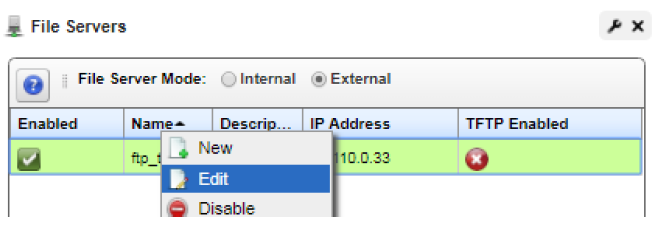
- Re-enter the password in the External File Server Window and save
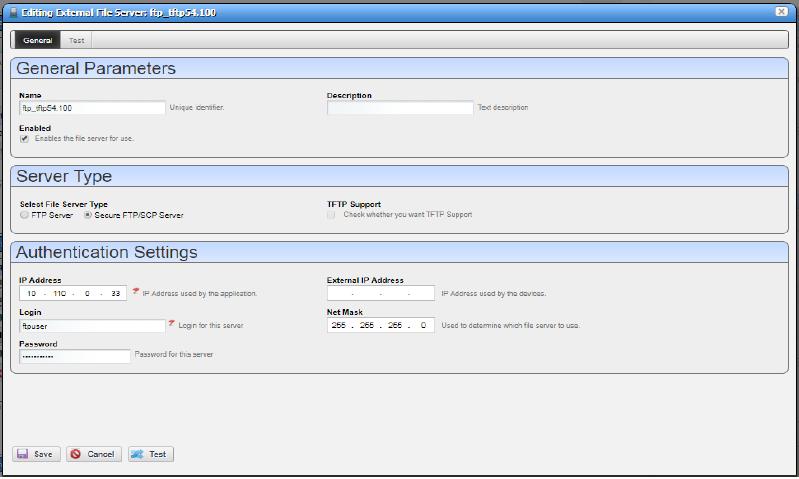
- Click Server Test
- If successful > issue resolved
- If not successful > go to step 3
Step 3: Verify FTP and TFTP server setup
- You need to setup a shared directory on the fileserver that FTP and TFTP user has all permissions to permit these servers to write, read and delete temporary files.
- If deploying firmware fails with the following symptoms:
• Selecting Deploy does nothing
• The FTP/TFTP File Server status is Disabled.
Validate Connection:
Back up the device to validate it is connected with the FTP server.
-
Managed Resources > Right-Click on Device > Select File Management > Backup
Change Timeout Values
A timeout can occur when backup/restore/deploy large config files.
Change timeout values in the telnet/SSH authentication object.
- Right-click > Edit the device > click on Management Interface Tab> Click on white Icon with
Pencil for telnet/ssh to edit. 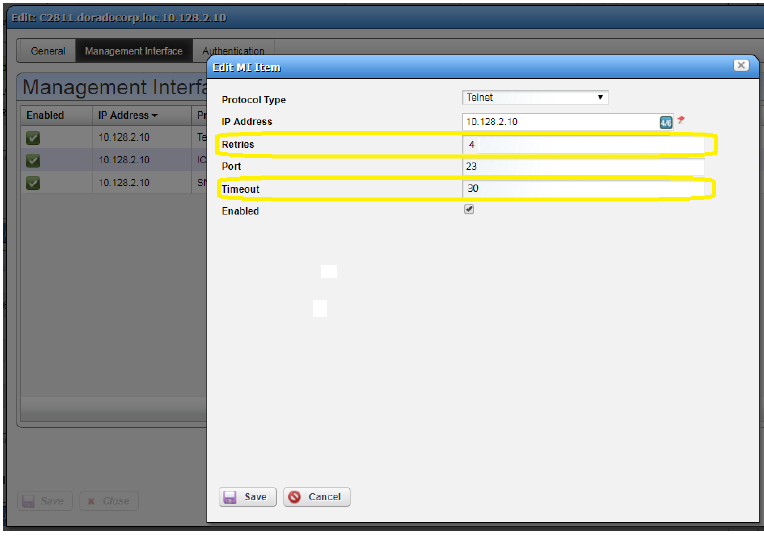
- Double the timeout setting (from 2 to 4)
- Increasing retries to 2 - 3 times. (example: 30)