![27067777_10155770309551084_2652624411171450813_n.png]](https://support.doradosoftware.com/hs-fs/hubfs/27067777_10155770309551084_2652624411171450813_n.png?height=40&name=27067777_10155770309551084_2652624411171450813_n.png)
Create a New Link Down Event Processing Rule
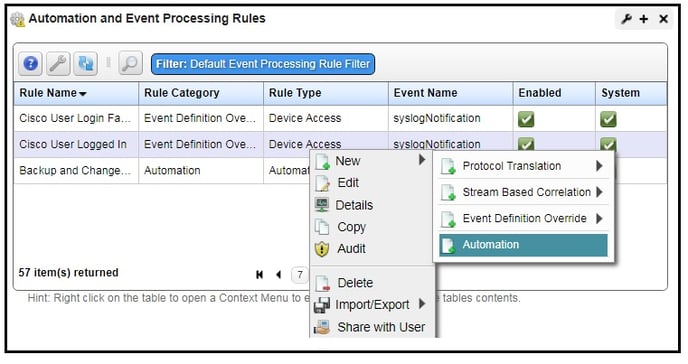
- Click Automation/Actions tab
- Right-click in Automation and Event Processing Rules Portlet
- Select new/automation option
- Provide a name like "Linkdown Email" of the processing rule
- Check to "Execute on Alarm Creation Only"
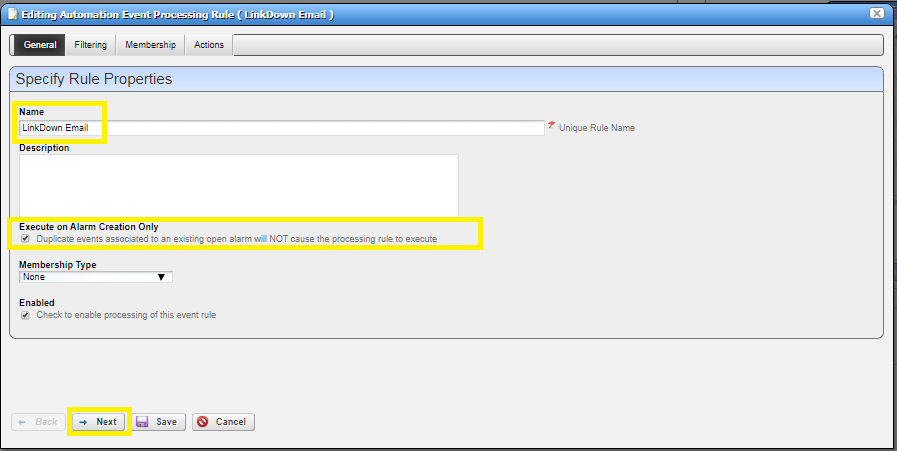
- Click next
Specify Event(S)
- In Specify event(s) section click the "Add" button
- Search for "linkdown" event
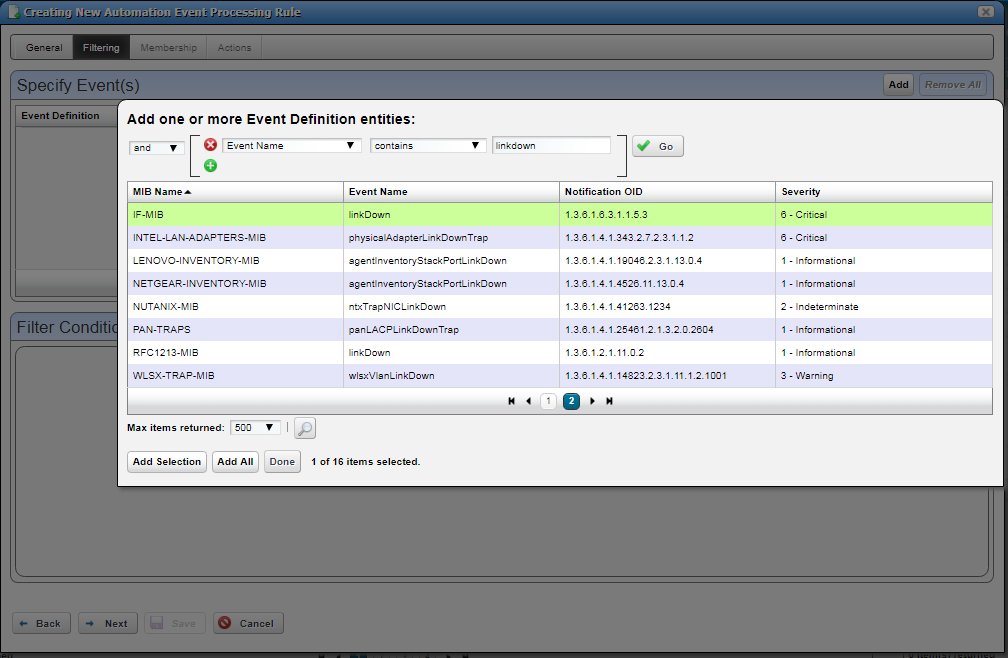
- Select "IF-MIB - linkdown" > click add selection button
- Click Done
- Click next button> click next button> OR Click on Action Tab
- Under Specify Actions > click on Add Action
- Click on Action > Email
- Name the File something Like Company LinkDown
- Add individual or group emails and click the green + Signed
- Add Subject and Description Email Action Variables.
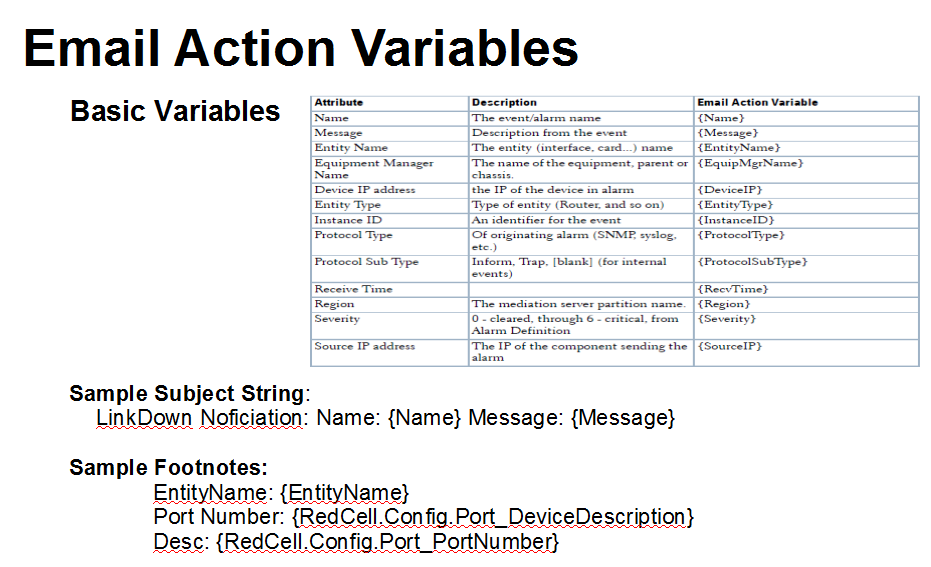
Updated Email Template using Email Variables
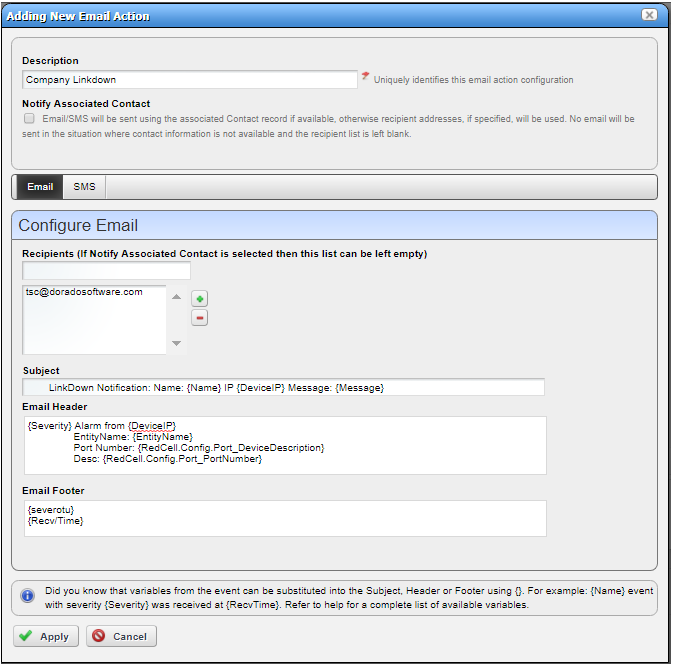
Click Apply > to save
Check out the following Knowledge-based Articles for other helpful Actions
(EPR) - Suppress Laptop Port Alarms
(EPR) - Resync the device after LinkDown alert is triggered?
Create Action (EPR) When recellEquipmentConfigChangeNotification is received